October 08, 2025 | By: PhotoBiz Knowledge Base
This video tutorial will guide you through adding video blocks to your PhotoBiz website builder.
The Video Block in PhotoBiz allows you to showcase video content in a clean, professional, and customizable way. You can embed videos from YouTube or Vimeo, or upload videos directly to your PhotoBiz account.
With multiple layout styles, autoplay and looping options, you can create dynamic video backgrounds, banner clips, or traditional players that fit your brand and website design.
You can add videos to your Video Block in two ways:
Need help uploading? Check out:
💡 Pro Tip
Using the Website Package? You can upload videos up to 4MB.
Need to upload larger files (up to 50MB)? Add the Original Files upgrade in your account.
Learn More: How to Add Original Files to PhotoBiz
Log In and Open the Website Builder
Log into your PhotoBiz account.
Click on WEBSITE from the left-hand menu.
Choose a Page
Click on the page where you’d like to add the video—or create a new one.
Add the Video Block using one of these options:
Pick a Block Style
You’ll see two options:
Click Select under your preferred style to add it to your page.
Add Your Video
Once your block is added, you’ll be in the Edit Video section.
If you selected a pre-designed block, it may come with a sample video. You can:
Choosing Your Own Video Source
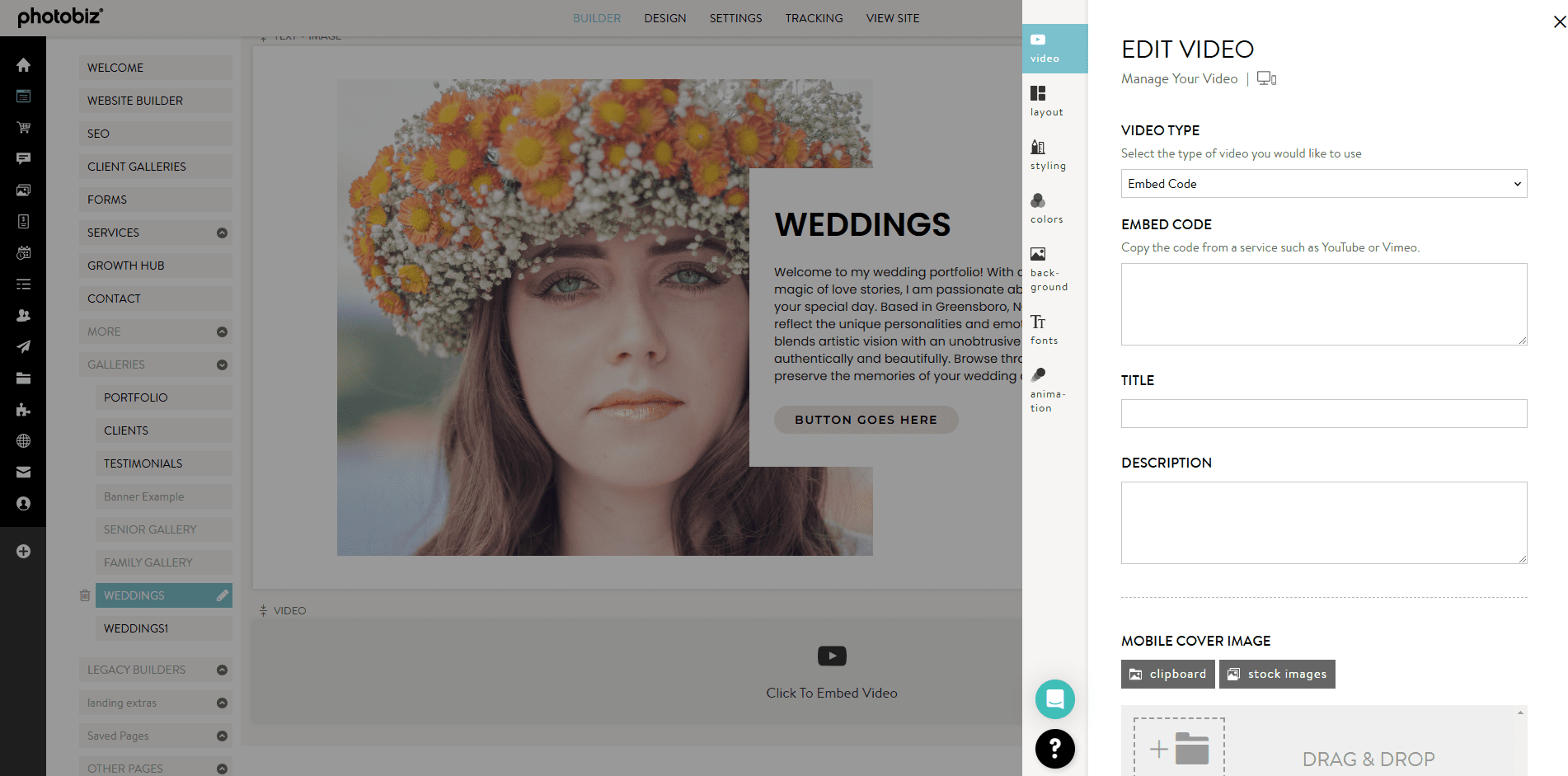
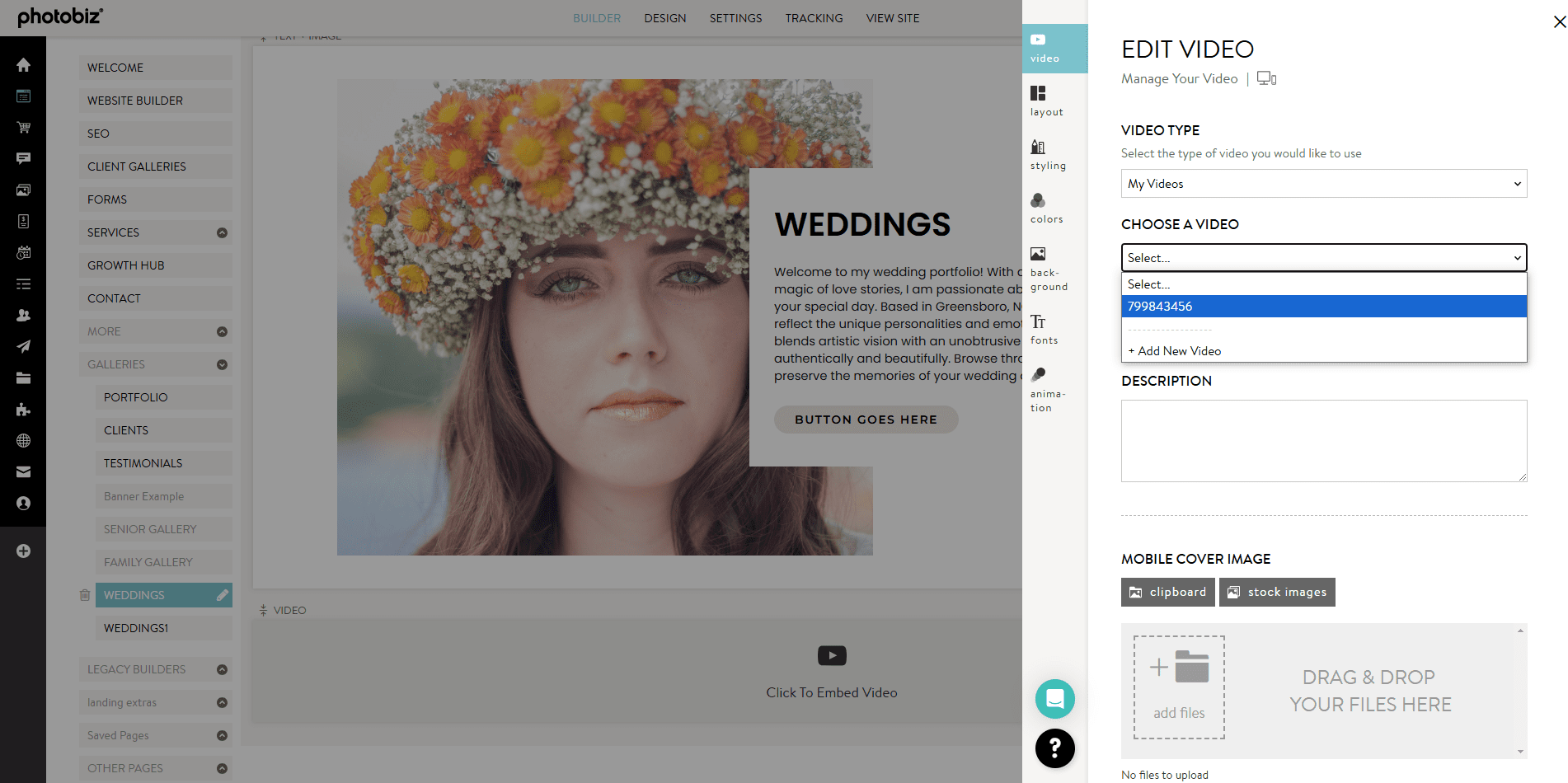
The right-side menu will let you pick your video type:
Use a code from YouTube, Vimeo, or another platform.
Add a button with an optional link:
None
External link
Page on your website
Form
Marketing campaign or landing page
File (PDF, JPG, PNG, GIF)
Phone, email, address, or even another video
Use a video uploaded to your PhotoBiz Video Library.
Note: If you don't upload a mobile cover image, a basic play button will show on mobile. If you'd rather show a still from your video, don’t upload a cover image.
Learn More: Upload New Videos to your PhotoBiz account.
Choose a Layout
You can choose from the following Video Block layouts. Here's a quick overview of what each one does:
Full Screen: Displays your video across the entire browser width and height. Slight cropping may occur to fill the full screen.
Banner: Displays your video as a fixed-height banner that stretches across the page.
Standard: Shows the video in its original dimensions with a standard player and play button. No cropping is applied.
No Crop Banner: Displays the full video without cropping while maintaining a banner-style layout.
Video Left: Places the video on the left side with text content on the right.
Video Right: Places the video on the right side with text content on the left.
Video Large Left: Shows a larger video on the left side with smaller text or image content on the right.
Video Large Right: Shows a larger video on the right side with smaller text or image content on the left.
Text Overlay Center Left: Places your video in the background with centered text overlay aligned to the left side.
Text Overlay Center Right: Places your video in the background with centered text overlay aligned to the right side.
Video Overlay Left: Displays the video on the left with an overlay text box or image on top of it.
Video Overlay Right: Displays the video on the right with an overlay text box or image on top of it.
Overlay Split Left: Splits the block visually, with the video and overlay content aligned to the left side.
Overlay Split Right: Splits the block visually, with the video and overlay content aligned to the right side.
Overlay Box Left: Displays the video with a boxed overlay (text or image) positioned on the left.
Overlay Box Right: Displays the video with a boxed overlay (text or image) positioned on the right.
Video Autoplay & Loop Behavior
When you upload your video directly to PhotoBiz, autoplay and looping are automatically supported in the following layouts:
These layouts are perfect for background or header videos that play automatically and loop seamlessly for an engaging visual effect.
The Standard layout does not autoplay or loop, making it ideal for videos that include dialogue, voice, or user interaction.
Important: Uploading your video to PhotoBiz guarantees autoplay and looping in these supported layouts. Embedded videos from YouTube or Vimeo may not autoplay depending on browser or device settings.
Autoplay for Embedded Videos (YouTube or Vimeo)
If you use an embedded video instead of uploading to PhotoBiz, you can enable autoplay manually. Keep in mind that most browsers require autoplay videos to start muted.
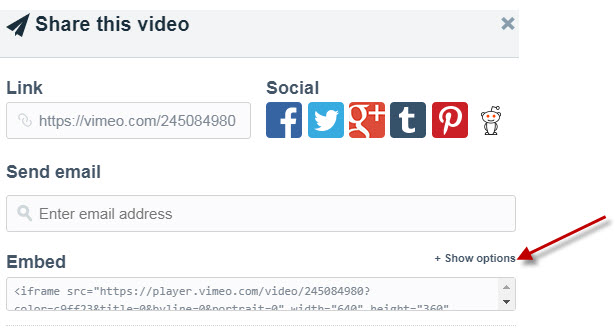
Click Share on your Vimeo video.
Under the Embed section, click Show Options.
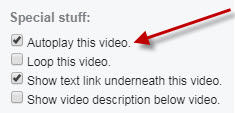
Check the box for Autoplay this video.
Copy the updated embed code and paste it into your Video Block.
Need Help? Check Out Vimeo's Full Guide on Embedding Videos
Click Share → Embed on your YouTube video.
Copy the embed code.
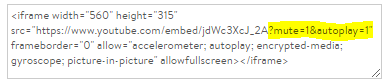
Add ?mute=1&autoplay=1 immediately after the video URL, before the ending quotation mark.
Example:
Enabling videos to play automatically when visitors land on your page can pose challenges. Most browsers and devices disable autoplay for video content as a default setting. While there are ways to work around this limitation and achieve autoplay, it's important to note that if your video has audio, it will be muted. Here are the steps you can follow if you're aiming to incorporate autoplay video content on your webpage.
If your video is hosted by Vimeo, click share on the video. Next to the Embed section, click show options.
Under Special Stuff, click Autoplay this video. Check the box for autoplay.
Copy the autoplay embed code and paste it into your Video block.
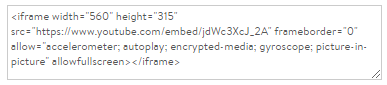
If your video is hosted by YouTube, you will need to manually add the autoplay code to your YouTube embed code.
Click share on the video and click embed. Copy the code and paste it into your Video block.
Your code will look like this:
To make your video autoplay, type ?mute=1&autoplay=1; right after the video's URL, before the ending quotation mark.
Your code will now look like this:
Styling options vary by layout. Here's what you can customize:
Each layout has its own color settings, which will override your global site colors from the DESIGN tab.
You can set a custom background for your video block:
Upload a custom image or choose from the library
Display options: Tile, Top Left, Centered, or Cover
Override your site-wide fonts for:
Adjust size, spacing, and line height to match your style.
Choose a hover animation for your button:
Click SAVE CHANGES at the bottom to publish your updates!