May 20, 2024 | By: PhotoBiz Knowledge Base
Welcome to our comprehensive guide on using the Form Editor in PhotoBiz! Whether you're looking to create new forms or customize existing ones, this tutorial will walk you through each step of the process. You'll learn how to choose the right form template, add and customize standard fields, capture essential client information with contact fields, and utilize powerful features like file uploads, payments, and digital signatures. By the end of this guide, you'll have all the tools you need to build and optimize forms that enhance your client interactions and streamline your workflow.
To begin click on the FORMS option in your control panel and and then choose FORM EDITOR. Click on your existing form or choose the option for NEW FORM to select the form template you wish to use. You can choose which FORM TEMPLATE you want to use between the 5 different categories by clicking on the SELECT button on the form you wish to customize. If you're looking to customize the look of your form, here's our tutorial on how to do that.
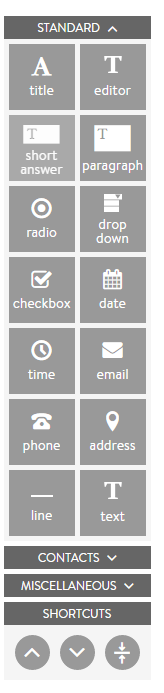
Standard fields collect general information, add titles, text, and format with line breaks.
Pro Tip: For sales lead generation or capturing specific customer contact information, use the CONTACT FIELDS to ensure the information is stored in your CONTACTS database.
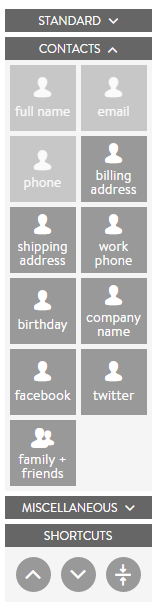
If you're using your form for Lead Generation or if you're trying to capture SPECIFIC CUSTOMER CONTACT INFORMATION, you'll want to use the CONTACT FIELDS so that it the information is properly captured into your CONTACTS (customer database).
Contact Fields allow you to properly capture and store your client/lead's contact information each time the form is submitted. These fields will help you grow your client database and take advantage of the CLIENT RELATIONSHIP BUILDER (CRM) tools that are built into your PhotoBiz account. Your contacts are stored in the CONTACTS icon, which can be found at the top of your Control Panel.
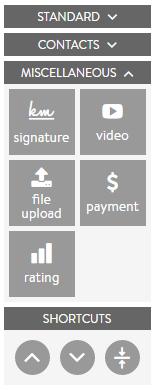
These fields are powerful tools that allow you specific functions in the FORM BUILDER.
You can edit any fields by clicking on the PENCIL ICON to the right of each field choice to make the field OPTIONAL or REQUIRED as well as access ADVANCED OPTIONS such as changing date and time format and adding conditions.
Leave a comment
0 Comments