PhotoBiz LLC Logo
  • WELCOME
  • WEBSITE BUILDER
  • SEO
  • CLIENT GALLERIES
  • FORMS
  • SERVICES
    • WE BUILD IT FOR YOU
    • SEO GO
    • CUSTOM WEBSITE DESIGN
    • LOGO DESIGN
    • DEDICATED ACCOUNT MANAGER
    • SOCIAL MEDIA MARKETING
    • COACHING
  • GROWTH HUB
  • CONTACT
MENU

How To Add Animation To My Buttons

Jul 29 2026 | By: PhotoBiz Knowledge Base

Share

How to Add Button Hover Animations in PhotoBiz

Overview

Button hover animations add movement when a visitor places a cursor over a button on your PhotoBiz website. These effects can make buttons feel more interactive and help draw attention to calls to action, such as booking a session, contacting you, viewing a gallery, or purchasing a product.

This guide explains how to select a global button hover animation in the PhotoBiz Website Builder. You will also learn how each animation works, how to override the global setting within an individual block, and how to preview your changes.

STEP ONE

Log in to your PhotoBiz account and select WEBSITE from the left-side menu.

This opens the PhotoBiz Website Builder, where you can manage your website pages, content, and design settings.

STEP TWO

Select DESIGN at the top of the Website Builder.

The Design area contains the global settings that control the overall appearance of your website.

STEP THREE

Select EDIT DESIGN SETTINGS.

Your global design settings will open in a menu on the right side of the control panel.

STEP FOUR

Select ANIMATIONS from the right-side menu.

Locate the Button Hover Animations setting and select the animation you want to use. You can choose None, Fill, Overlay, Scale, or Arrows.

FINAL STEP

Select SAVE CHANGES to apply the button hover animation to your website.

Open your website in a desktop browser and place your cursor over a button to preview the effect. The Save button automatically applies your changes to your website. You do not need to publish your website separately.

Button Hover Animation Options

PhotoBiz includes several button hover animation styles:

  • None: Removes the animated hover effect from your buttons.
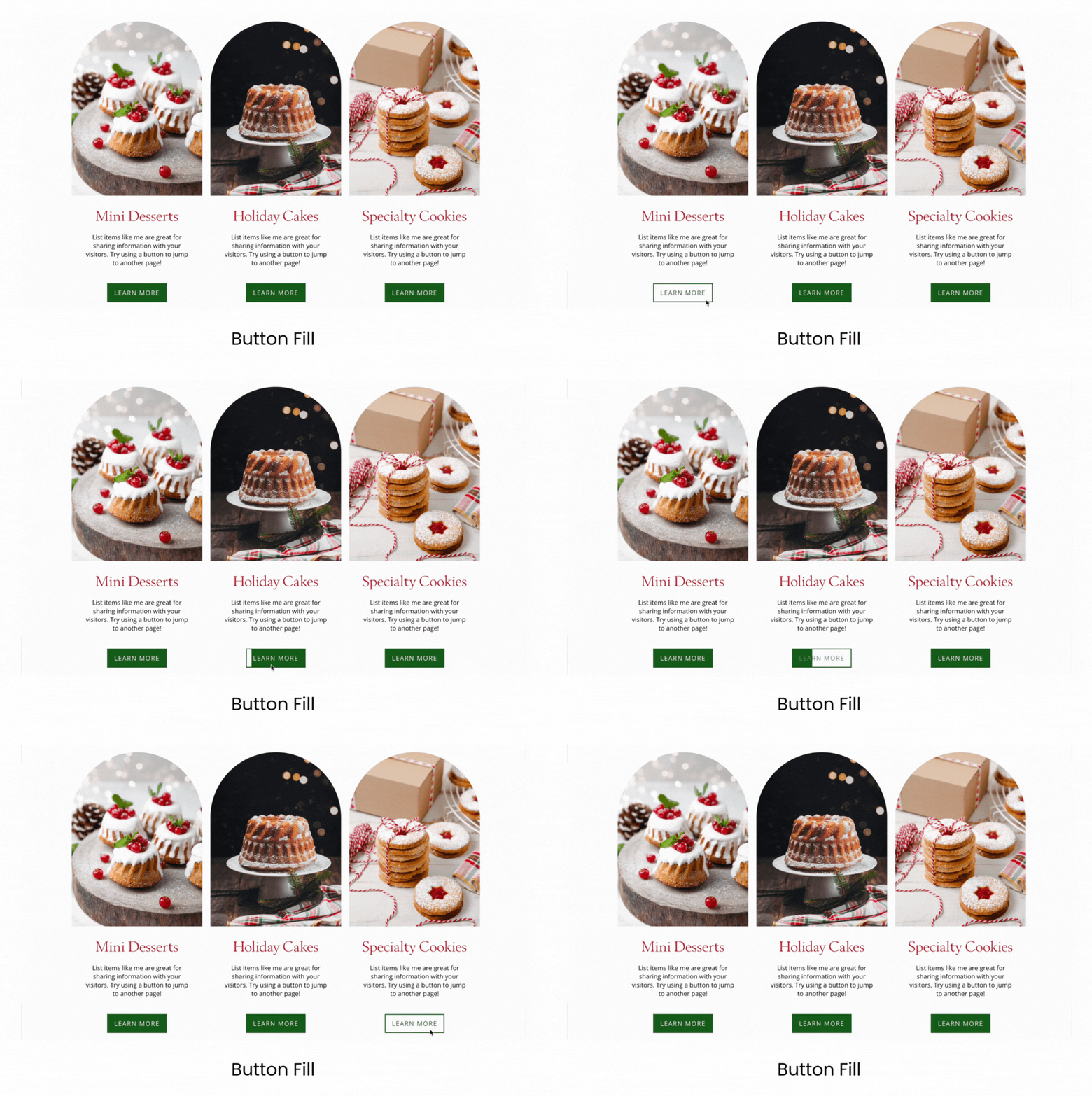
  • Fill: Adds a filling movement when a visitor hovers over a button.
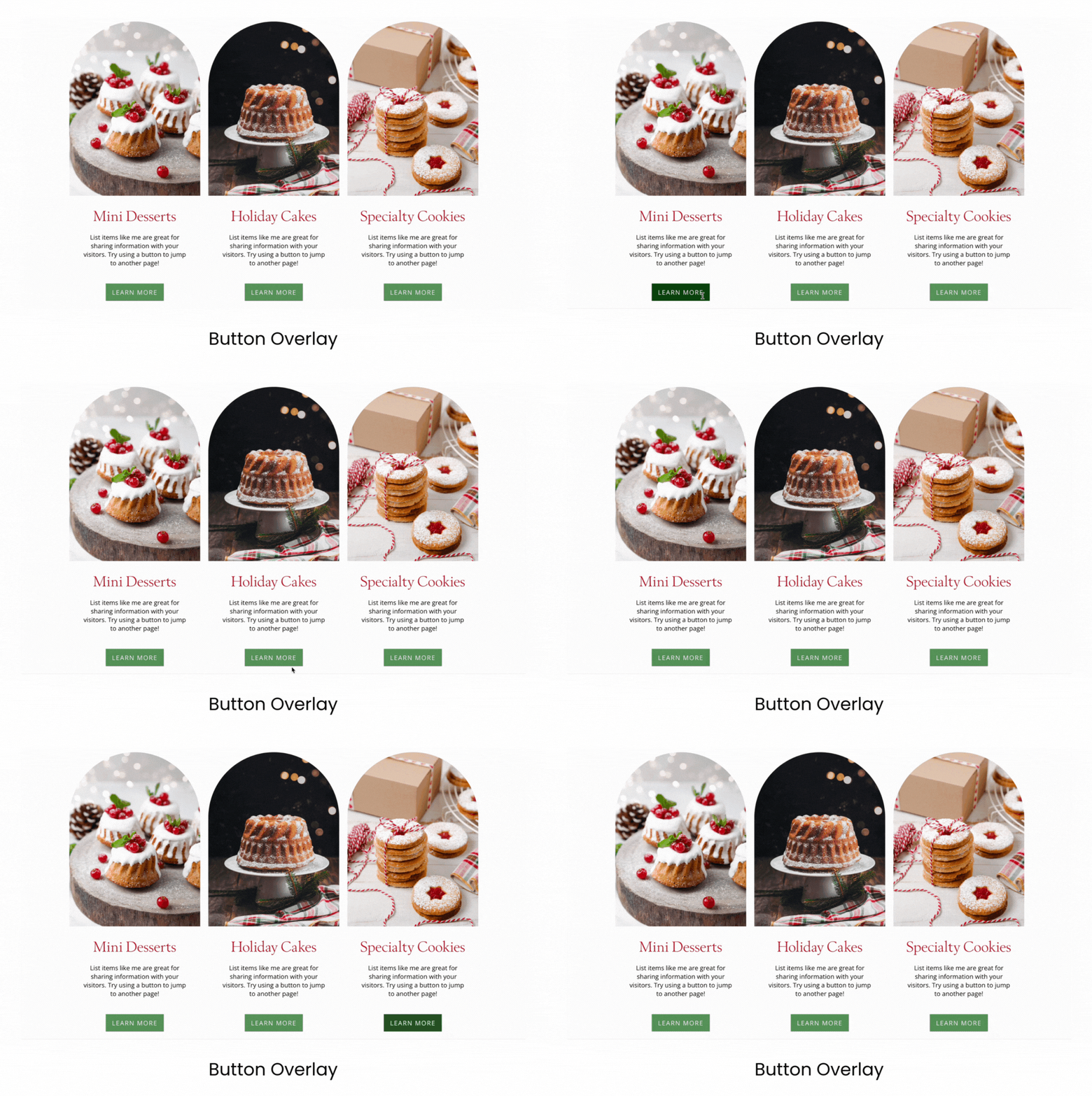
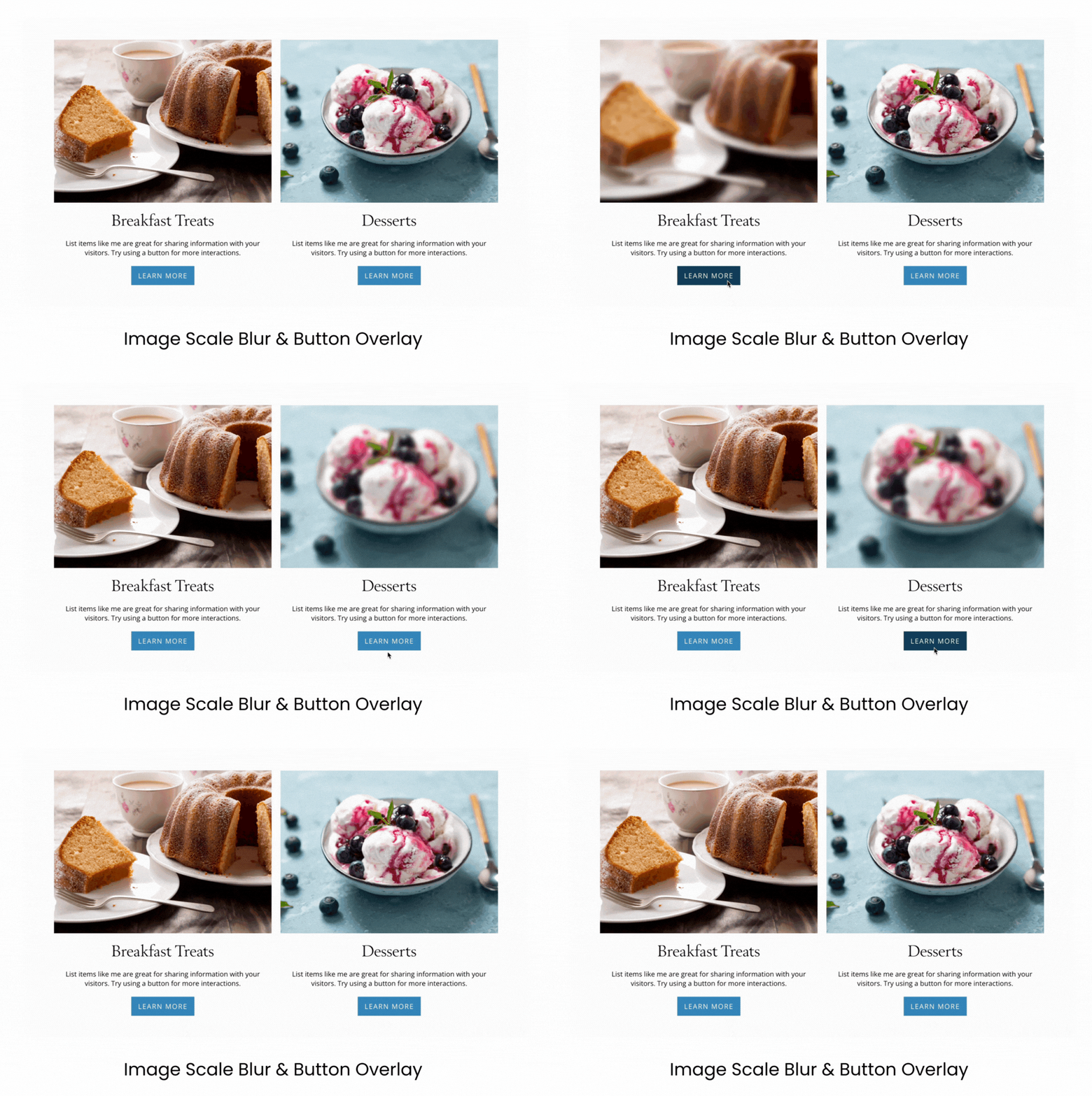
  • Overlay: Displays an animated overlay across the button.
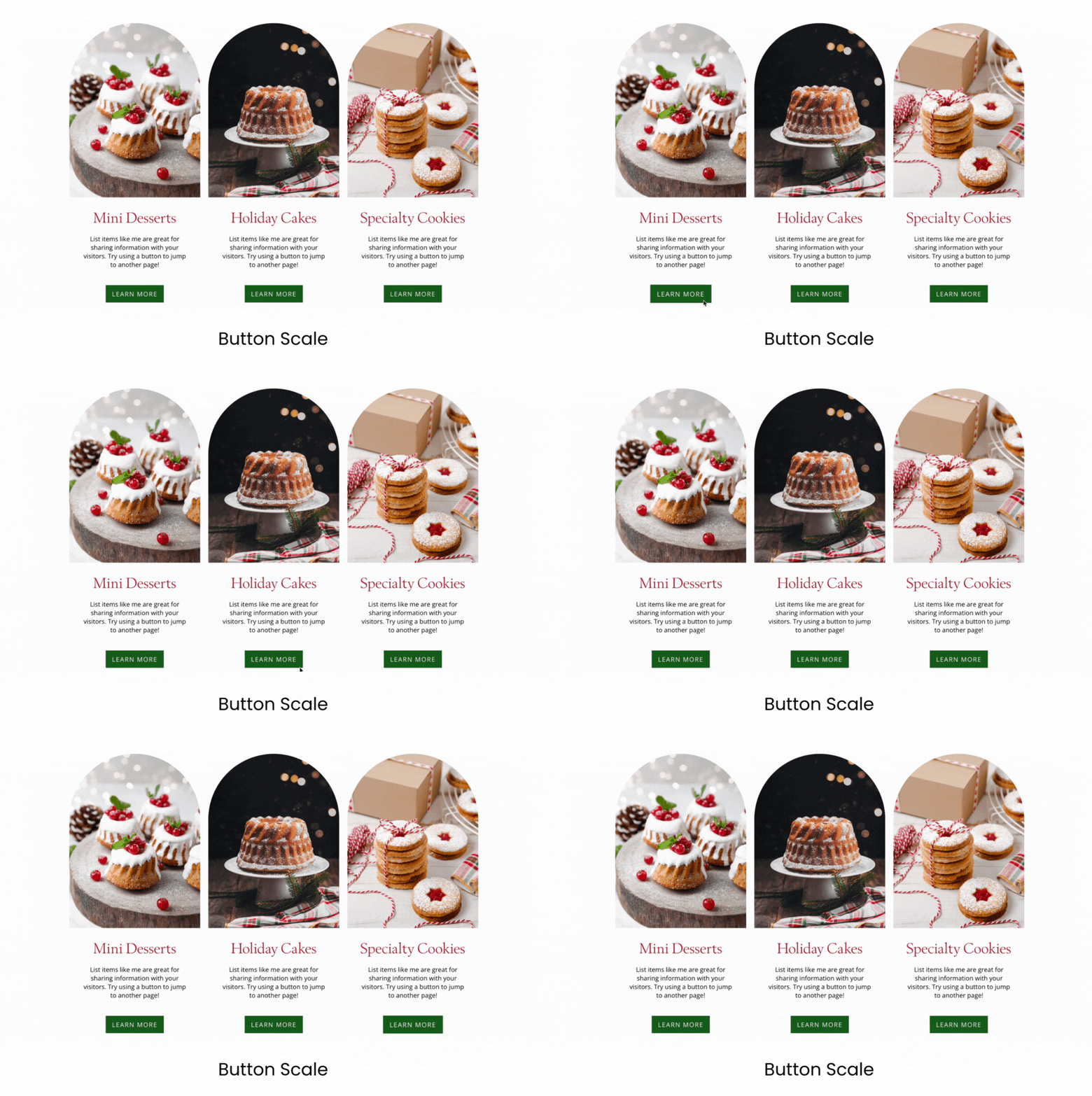
  • Scale: Changes the button’s size slightly to create movement.
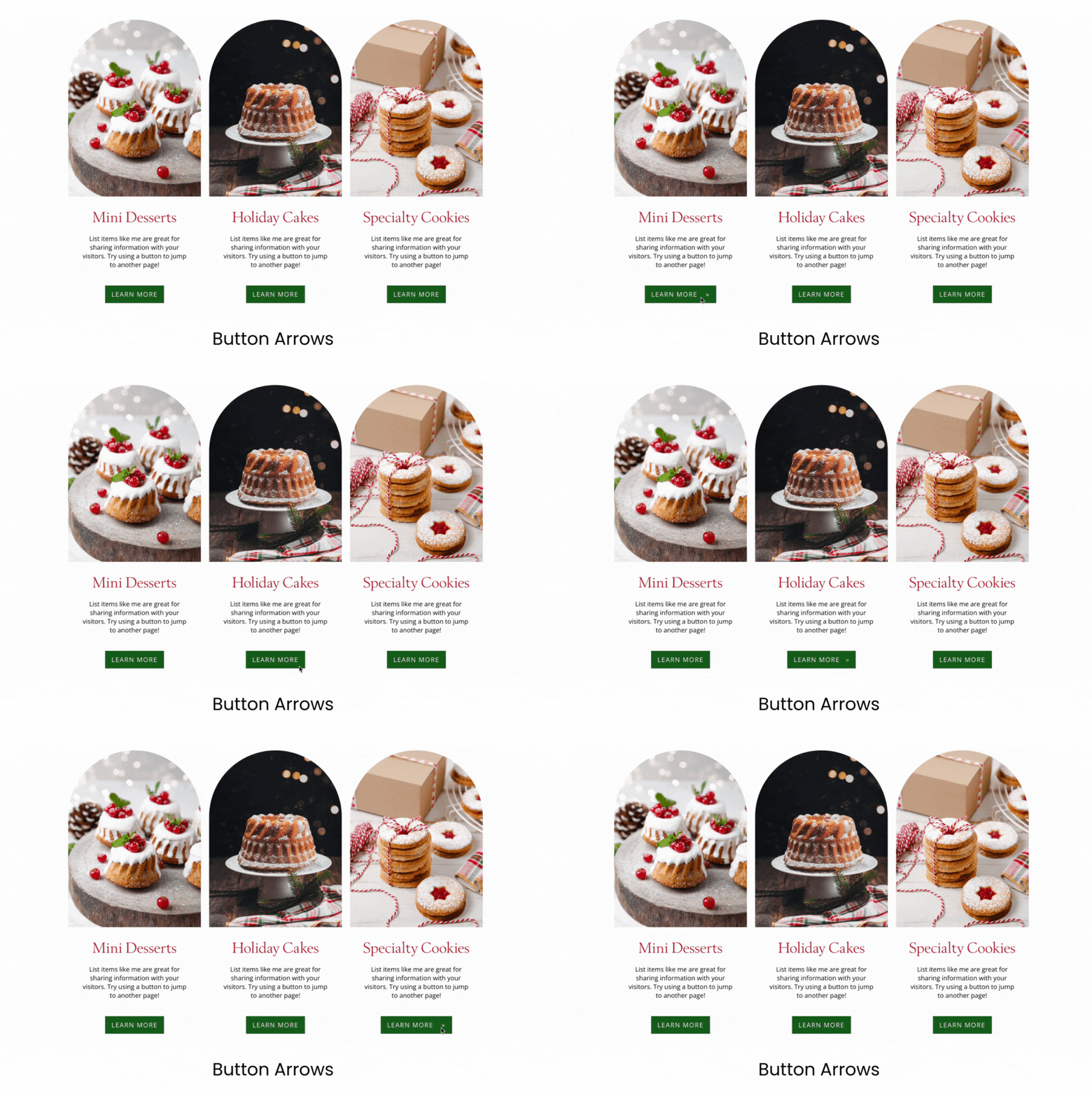
  • Arrows: Adds an animated arrow effect to the button.

The exact appearance of each animation may vary based on your website design, button colors, fonts, and other styling settings.

The screenshots below show examples of the available button hover animation styles.

Override the Global Animation Within a Block

The Button Hover Animations setting under Design controls the default animation used throughout your website.

You can also configure button hover animations within individual Website Builder blocks. A block-level setting overrides the global animation for buttons inside that specific block.

Use a block-level animation when you want a particular section of your website to use a different effect without changing buttons throughout the rest of the site. Updating the animation inside one block does not change your global design setting or the animation used by other blocks.

If a button is not displaying the global animation you selected, check the block’s individual settings for a block-level override.

Helpful Notes

Hover animations are primarily visible on desktop and laptop computers because visitors use a mouse or trackpad. Phones and tablets use touch controls, so mobile visitors may not see the same hover effect.

Choose an animation that supports your website design without distracting visitors from the button’s purpose. A subtle and consistent effect can help visitors recognize that a button is clickable.

Use clear button text that describes what will happen when the visitor selects it. Examples include:

  • Book a Session
  • View the Gallery
  • Contact Me
  • Shop Prints
  • Learn More

Do not rely on movement alone to show that an element is clickable. The button’s text, shape, contrast, and placement should also make its purpose clear.

Troubleshooting Button Hover Animations

The global animation is not appearing

Check the settings inside the block containing the button. A block-level button hover animation overrides the global setting selected under Design.

The animation does not appear on a phone or tablet

Hover animations are designed for devices that use a cursor. Touchscreen devices may not display the effect in the same way.

The previous animation still appears

Confirm that you selected SAVE CHANGES, then refresh the live website in your browser. You may also need to move your cursor away from the button and place it over the button again to restart the effect.

The animation looks different from the example

The final appearance depends on your button colors, fonts, backgrounds, and other website design settings. Preview the animation on your live website to see how it works with your specific design.

Watch the PhotoBiz Live Demonstration

Watch PhotoBiz Live Ask Me Anything: How Website Animations Can Increase Sales to see examples of website animations and learn how movement can help draw attention to important calls to action.

Previous Post Next Post

Related Posts

How To Use Image Blocks

July 17, 2026

How To Add Animation To My Images

April 22, 2025

How To Change Block Load Animation

April 22, 2025

How to Adjust Load More Options in an Images Block

July 20, 2026

Need More Help?

CONTACT US

BUILDER

Website Builder Client Galleries Blog  

TOOLS

Ecommerce Scheduler Quotes & Invoices  

MARKETING

Email Marketing Forms Contacts SEO  

MORE

Account Settings Domain & Email Files PhotoBiz Growth Hub Blog Go To PhotoBiz.com  
Copyright © 2004 – 2026 PhotoBiz, LLC All rights reserved
Crafted by PhotoBiz
PhotoBiz LLC Logo
CLOSE
  • WELCOME
  • WEBSITE BUILDER
  • SEO
  • CLIENT GALLERIES
  • FORMS
  • SERVICES
    • WE BUILD IT FOR YOU
    • SEO GO
    • CUSTOM WEBSITE DESIGN
    • LOGO DESIGN
    • DEDICATED ACCOUNT MANAGER
    • SOCIAL MEDIA MARKETING
    • COACHING
  • GROWTH HUB
  • CONTACT