PhotoBiz LLC Logo
  • WELCOME
  • WEBSITE BUILDER
  • SEO
  • CLIENT GALLERIES
  • FORMS
  • SERVICES
    • WE BUILD IT FOR YOU
    • SEO GO
    • CUSTOM WEBSITE DESIGN
    • LOGO DESIGN
    • DEDICATED ACCOUNT MANAGER
    • SOCIAL MEDIA MARKETING
    • COACHING
  • GROWTH HUB
  • CONTACT
MENU

How can I add an image to my blog post with a URL?

Jun 23 2026 | By: PhotoBiz Knowledge Base

Share

How to Add an Image to a Blog Post Using a Direct File URL

Overview

The PhotoBiz Website Package includes a built-in Blog tool that lets you share updates, feature sessions, post announcements, and add fresh content to your website. The Blog Post Builder allows you to add text, images, videos, and other content to your blog posts.

If you have an image file, such as an animated GIF, that you want to display inside a blog post, you can upload the file to your PhotoBiz Files section and embed it using the direct file URL. This is helpful when you want to place an image inside a Text Editor Block instead of using a standard image upload option.

This guide walks you through how to add an image to a PhotoBiz blog post using a direct file URL.

Prerequisites

Before you begin, make sure your image file has already been uploaded to your PhotoBiz Files section and that you have copied the direct file URL.

If you have not copied the direct file URL yet, see:

Guide: How To Get Your Direct File URL

STEP ONE

Log in to your PhotoBiz account and click BLOG in the left-side menu.

This opens your Blog Dashboard, where you can manage existing blog posts or create a new post.

STEP TWO

Click the title of the blog post where you want to add the embedded image. If you have many blog posts, you can find it with the search bar using the title.

You can also create a new blog post if you are adding the image to a new piece of blog content. Once the post opens, you will be able to edit the post using the Blog Post Builder.

STEP THREE

Add a Text Editor Block to your blog post.

The Text Editor Block allows you to add formatted text and insert media directly into the content area of your blog post. This is where you will embed the image using the direct file URL.

STEP FOUR

The right-side menu will open for the Text Editor Block.

Click the Insert/Edit Image button in the text editor toolbar. This opens a pop-up window where you can add the image URL and optional image details.

FINAL STEP

In the pop-up window, paste your direct file URL into the Image URL field.

You can also add alt text for the image. Alt text is a short description of the image that can help with accessibility and search engine understanding. For example, if you are embedding an animated GIF that shows how to drag and drop blocks in the Website Builder, your alt text could describe that action.

Click OK to add the image to the Text Editor Block.

Click Save Changes to update your blog post. When your blog post content is finished, publish the post so it appears live on your blog page.

After the image is embedded, it will display inside your blog post wherever you added it in the Text Editor Block. Animated GIF files will display as embedded images when the file type is supported and the direct file URL is entered correctly.

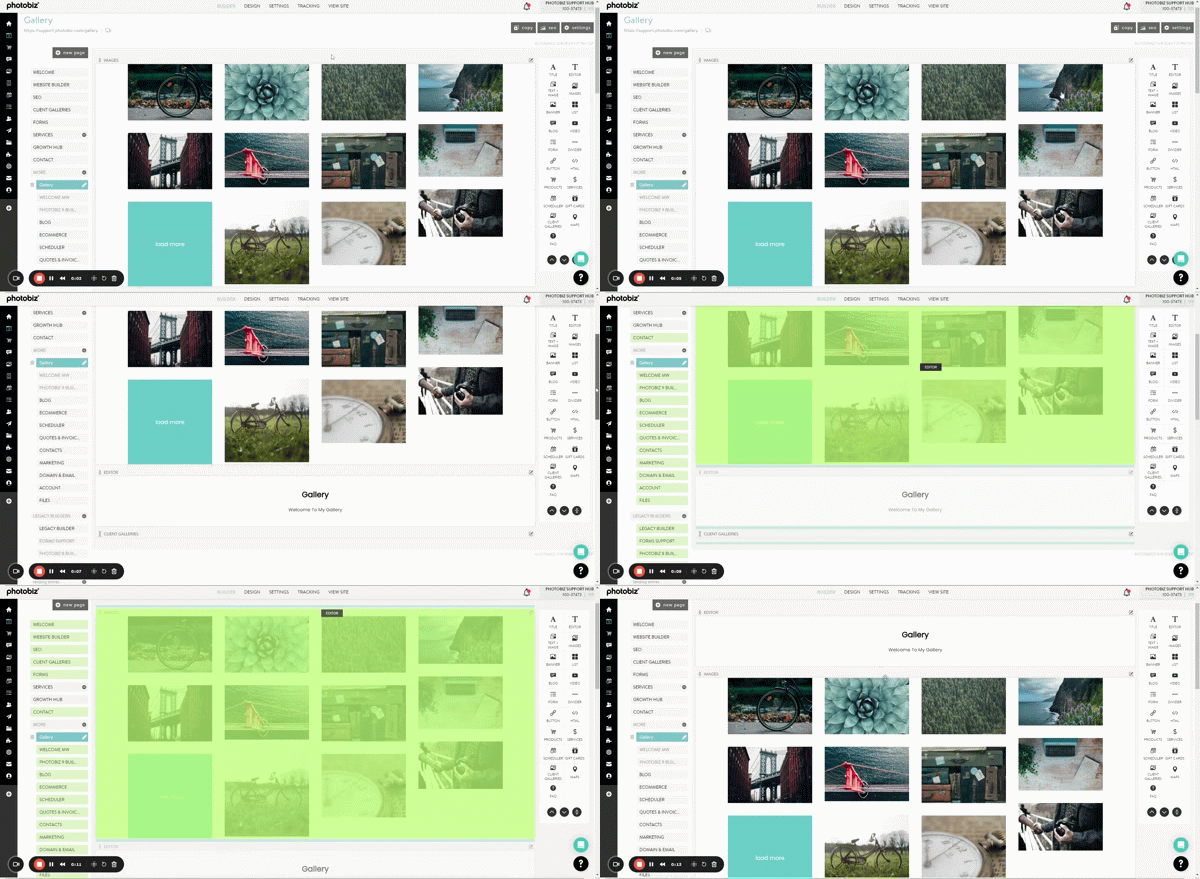
PhotoBiz Website Builder Drag and Drop Block Functionality

Additional Options and Helpful Notes

Using a direct file URL is helpful when you want to embed an image file that has already been uploaded to your PhotoBiz account. This can be useful for animated GIFs, instructional graphics, or other image files you want to place directly inside your blog content.

Keep these tips in mind:

  • Use clear alt text when adding images to your blog post.
  • Make sure the direct file URL is copied from the Files section before starting.
  • Confirm the image displays correctly before publishing your blog post.
  • Use image files that are optimized for web viewing so your blog post loads quickly.
  • If you are using an animated GIF, preview the published blog post to make sure the animation displays as expected.

Troubleshooting

The image does not appear in the blog post

Confirm that the direct file URL was copied correctly from your PhotoBiz Files section. If the URL is incomplete or incorrect, the image may not display.

The image appears broken after saving

Open the image URL in a new browser tab to confirm the file loads correctly. If the file does not load from the direct URL, return to your Files section and copy the direct file URL again.

The image is too large inside the blog post

Use a web-optimized image file before uploading it to your Files section. Large images can affect page load speed and may not display the way you want inside your blog content.

The animated GIF is not playing

Confirm that the uploaded file is an animated GIF and that you embedded the direct file URL for the GIF file. You should also preview the live blog post after publishing to confirm how it displays for visitors.

Want PhotoBiz to Write Your Blog Posts for You?

Consistent blogging can help improve your website’s SEO, give you fresh content to share with clients, and keep your audience engaged. If you do not have time to write and publish blog posts yourself, PhotoBiz offers SEO Go Plus as a professional service option.

With SEO Go Plus, you work with a certified SEO expert who helps improve your online presence using proven SEO strategies. Our team creates and schedules two blog posts per month for your website. Each post is tailored to your business, audience, keywords, and images.

SEO Go Plus also includes one monthly newsletter email based on your blog content, so you can keep past clients, leads, and subscribers updated with your latest posts, promotions, and business news.

This service is a great option if you want the SEO benefits of regular blogging but would rather have the PhotoBiz team plan, write, publish, and promote the content for you.

Learn More: SEO Go & SEO Go Plus Services

Previous Post Next Post

Related Posts

Can I Add Header Tags (H1, H2, H3) To My PhotoBiz Site?

June 19, 2026

How Do I Create a Blog Post?

June 23, 2026

How do I upload images to a blog post?

June 27, 2024

Can I add alt text to my blog post images?

June 19, 2026

Need More Help?

CONTACT US

BUILDER

Website Builder Client Galleries Blog  

TOOLS

Ecommerce Scheduler Quotes & Invoices  

MARKETING

Email Marketing Forms Contacts SEO  

MORE

Account Settings Domain & Email Files PhotoBiz Growth Hub Blog Go To PhotoBiz.com  
Copyright © 2004 – 2026 PhotoBiz, LLC All rights reserved
Crafted by PhotoBiz
PhotoBiz LLC Logo
CLOSE
  • WELCOME
  • WEBSITE BUILDER
  • SEO
  • CLIENT GALLERIES
  • FORMS
  • SERVICES
    • WE BUILD IT FOR YOU
    • SEO GO
    • CUSTOM WEBSITE DESIGN
    • LOGO DESIGN
    • DEDICATED ACCOUNT MANAGER
    • SOCIAL MEDIA MARKETING
    • COACHING
  • GROWTH HUB
  • CONTACT