November 21, 2022 | By: PhotoBiz Knowledge Base
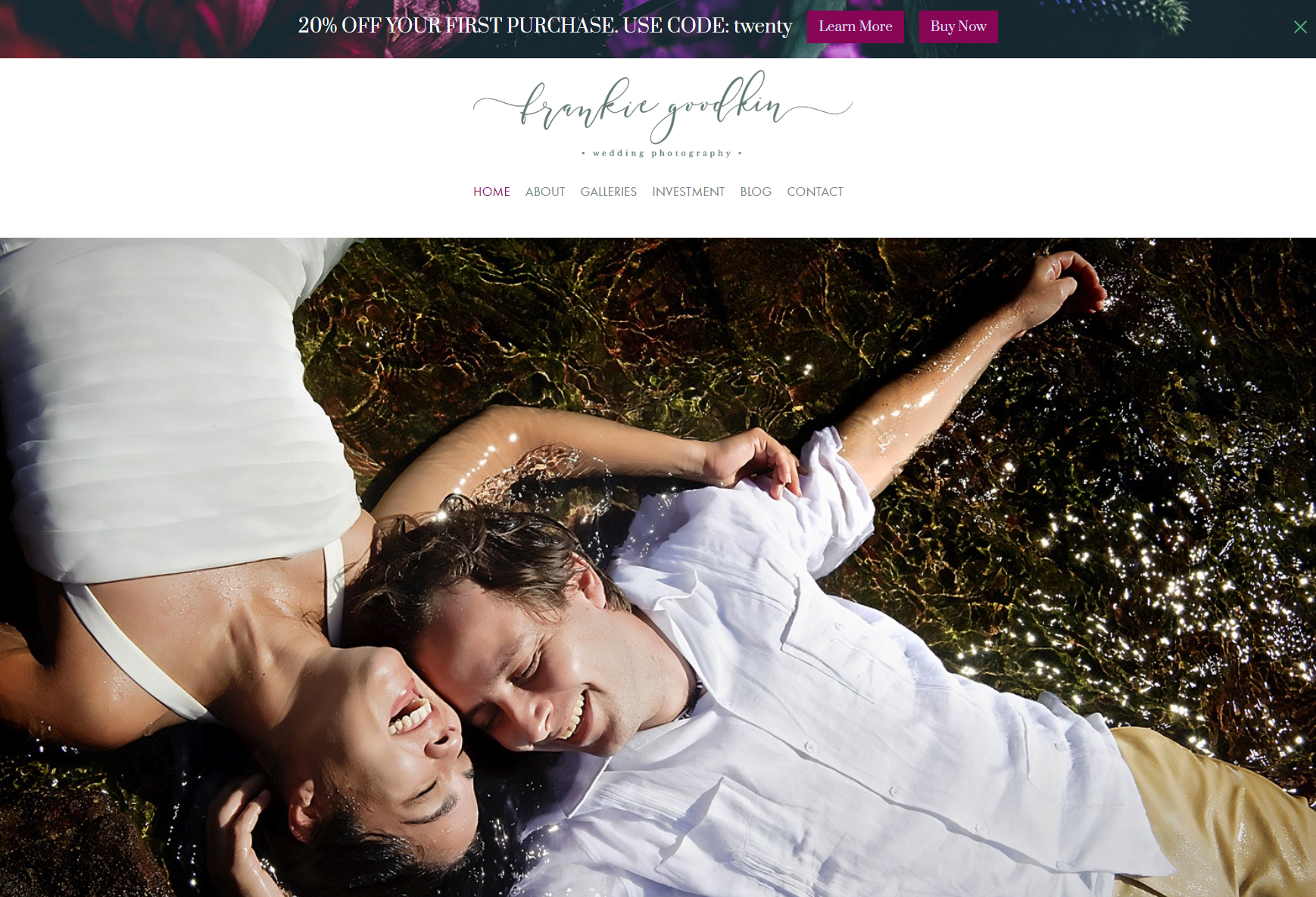
Promo Bars allow you to showcase news, events, promotions, and more on your web pages and Client Galleries events. They can include background images, one or two buttons, and up to 250 characters of text. Promo Bars can be displayed at either the bottom or top of a page. This guide will walk you through how to create and publish a promo bar.
Log into your PhotoBiz account and click on MARKETING in the left-side menu.
At the top-center of your Marketing control panel, click on the POP UP BUILDER option.
Click on the NEW POP UP button, and the right-side menu will open. Here, you can choose your promo bar layout.
Promo Bars are located in the first row of layouts after clicking the new pop-up builder. There are three layouts to choose from. Click on SELECT to choose the promotion bar you want to use.
Once you've selected your promo bar layout, you can customize the text, colors, fonts, and more. Click on the EDIT button in the upper right corner of your promo bar preview.
The right-side menu will open, allowing you to configure the following options:
The Text tab contains the following options:
Click on Save Changes to update your text.
Click Save Changes to update your buttons.
Click on Save Changes to apply your pop-up location setting.
Click on Save Changes to apply your colors.
Once you've selected your background setting, click on save changes to apply them to your promo bar.
After designing your promo bar, you’re ready to publish it live on your website.
Click on the PUBLISH button in the upper-right corner of your promo bar preview.
ADDITIONAL SETTINGS
You can change the name of your Promo Bar in this section to be able to better distinguish one pop-up and promo bar from another in your control panel. Only you can see your pop-up names.
You can choose to display your Promo Bar on all of the pages of your website, a specific page, or not at all. You can also choose to display your Promo Bar in all of your Proofing Events, a specific Proofing event category, or not at all.
This setting will allow you to control how soon a visitor will see your Promo Bar again after closing it out. You can choose to display your Promo Bar only once, every day, every 7 days, or every 30 days.
You can determine when your pop-up will be published and even set it up ahead of time. You can also determine what date you would like the pop-up to discontinue by adjusting the expiration date. Click the publish button to save all of your changes!
Leave a comment
0 Comments